The Server That Wouldn't Boot
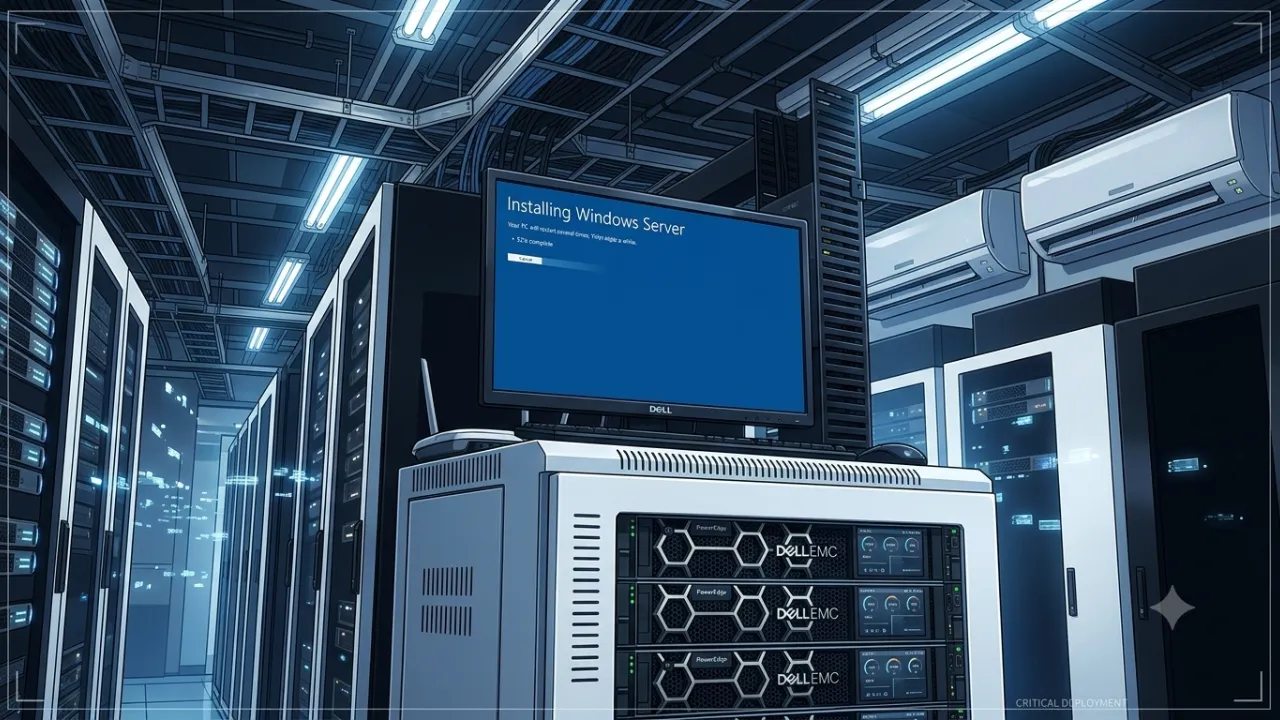
A Windows Server installation that became a lesson in hardware, patience, and knowing when to escalate
When I first sat down in front of our Dell PowerEdge R740, the task sounded simple: install Windows Server 2025 on the NVMe drive and keep the 2 TB RAID volume for data.
The final structure was meant to be straightforward:
- C: Windows Server on NVMe
- D: RAID volume for data
I expected a routine installation. Instead, the server took me through several days of ISO files, iDRAC sessions, boot menus, duplicate Windows entries, command-line investigations, progress bars that raised my hopes, and reboots that brought me back to where I had started.
Throughout all of it, my most consistent companion was ChatGPT. I began to think of it less as a tool and more as the friend sitting beside me in the server room helping me interpret each screen, slow down before destructive actions, and translate a confusing technical problem into something I could explain to my boss and senior engineers.
The first wrong turn
The journey began with iDRAC Virtual Media. I mounted what I believed was the Windows Server installer and tried to boot from the virtual optical drive.
The server refused.
Boot Failed: Virtual Optical Drive
The filename eventually revealed the mistake. I had downloaded a Languages, Optional Features and OEM packages image, not the actual Windows Server installer. It was an ISO file, but not every ISO is a bootable operating-system installer.
That was the first lesson: a familiar file extension can create false confidence.
I downloaded the correct Windows Server 2025 Evaluation ISO from Microsoft, mapped it through iDRAC, and reached Windows Setup. For a moment, it felt as though the problem had already been solved.
It had only just begun.
Windows was installed, but not where it could truly live
The server contained two main storage devices:
- A roughly 2 TB RAID volume, already holding the working Windows installation
- A roughly 1 TB NVMe drive, which we wanted to become the operating-system disk
I deleted the NVMe partition, selected its unallocated space, and installed Windows. Setup copied files and rebooted, but instead of opening the new installation, Windows Boot Manager displayed two identical entries:
Windows Server Windows Server
One entry looped. The other returned me to the old Windows installation on the RAID volume.
Inside the old system, the NVMe appeared as D: and contained a complete-looking Windows directory, Program Files, Users, Windows.old, and even winload.efi. Windows had clearly copied itself there but the drive still had no independent EFI system partition or proper boot structure.
This became the central mystery: the operating-system files existed, but the drive could not independently start them.
The investigation deepened
ChatGPT and I worked through the evidence carefully.
We used Disk Management, DiskPart, PowerShell, and bcdedit to identify exactly which disk was which. We confirmed the RAID controller, confirmed the NVMe model, checked GPT status, inspected boot entries, and verified that Windows Setup had registered both installations.
Shift + F10 -> diskpart -> list disk
At different points, we tried to protect the RAID disk by taking it offline so Setup could not reuse its EFI partition. That caused Windows Setup to fail during a refresh with:
0x8007001F - 0x4002F
We restored the disk, restarted, and tried again without changing the storage state mid-installation.
When iDRAC Virtual Media remained a possible suspect, I created a physical bootable USB using Rufus. I learned the difference between simply copying an ISO onto a USB drive and properly writing bootable installation media. I selected GPT, UEFI, and the correct Windows Server image, then verified the resulting boot, efi, sources, and setup.exe files.
The USB booted perfectly.
This time Windows Setup reached the disk-selection screen cleanly. I selected the unallocated NVMe space and watched the installation advance.
Ten percent.
Then much further.
At around 78 percent, the server restarted.
For a brief moment, I thought we had finally won.
Then the same two Windows Server entries returned.
The first looped back to the menu. The second booted the old RAID installation as if nothing had happened.
Knowing when to stop circling
By this stage, I had accumulated enough screenshots and command output to write a small case file. I could explain the symptoms clearly to my boss and senior engineers:
- The correct ISO worked.
- The physical USB worked.
- Windows Setup detected the NVMe.
- Windows files were copied to it.
- A boot entry was created.
- But the server could not complete the handoff and boot from that drive.
The temptation in troubleshooting is to keep changing one more setting, rerunning one more command, or reinstalling one more time. But there is also a point where persistence can turn into repetition.
We had reached that point.
I reported the full history instead of pretending that another identical attempt would produce a different result. That decision was as important as any command I had run.
The answer was in the hardware design
A Dell service engineer eventually attended the server and found the missing piece: the original NVMe drive had not been designed or provisioned as a bootable device in this server configuration.
The drive was visible to Windows Setup. It could store files. It could even hold a Windows directory. But being detectable as storage was not the same as being supported by the platform as a boot device.
The engineer brought a different 3.2 TB PCIe-attached NVMe drive that the server firmware recognised as boot-capable. He transferred the bootable system from the RAID arrangement to the new NVMe.
The final layout became exactly what we had wanted:
- C: Windows Server running from the 3.2 TB NVMe
- D: The 2 TB RAID volume dedicated to data
After days of troubleshooting, the solution was not another installation command. It was the correct hardware path.
What the experience taught me
The biggest lesson was that visible does not always mean bootable. An operating-system installer may detect a drive, format it, and copy Windows files onto it, while the server firmware still cannot use it as a supported startup device.
I also learned that troubleshooting is not just about finding commands. It is about building evidence:
- Confirm the installation media.
- Identify every disk by size and hardware model.
- Separate the OS location from the bootloader location.
- Preserve a known-good fallback until the replacement boot path is proven.
- Record errors and screenshots so the problem can be escalated clearly.
Most importantly, I learned that asking for help is part of good engineering. ChatGPT helped me stay methodical when the screens became repetitive and the situation became frustrating. My boss and senior engineers helped determine when the problem needed a wider review. The Dell engineer supplied the hardware-level insight that software troubleshooting alone could not provide.
In the end, I did not merely get Windows Server running on the right drive. I learned how UEFI booting, EFI partitions, RAID controllers, installation media, firmware support, and hardware compatibility fit together and I learned when to keep investigating and when to escalate.
The server now boots exactly as intended.
And the next time a drive appears in an installer, I will ask a better question than, “Can Windows see it?”
I will ask:
Can this server actually boot from it?